Climate Engine–Earth Engine Connector
Success
Access the Climate Engine-Earth Engine Connector at https://users.climateengine.org/v1/ee_auth
The Climate Engine–Earth Engine Connector allows Climate Engine API users to authorize Climate Engine to use their own Google Cloud Project for Earth Engine processing and Google Cloud Storage exports. This is useful for users who need to run larger jobs, repeat analyses on a regular schedule, or build workflows that depend on outputs being written directly to their own Google Cloud resources.
Climate Engine is built on Google Cloud, with Google Earth Engine providing much of the processing and data infrastructure behind the platform. For most users, the standard Climate Engine web application and API access are sufficient. However, users who need more scale, more control over exports, or tighter integration with their own cloud environment may benefit from enabling the connector.
Note
The connector is intended for Climate Engine API workflows. The Climate Engine web application remains freely available for interactive analysis.
What the connector does
When you enable the connector, you give Climate Engine permission to initialize Earth Engine using your authorized Google Cloud Project and to write supported export files to Google Cloud Storage buckets associated with the cloud project. Completing this step exempts the user from Climate Engine's quota system, which is used to manage shared compute and export task queues.
The connector can be used for workflows that generate cloud-optimized GeoTIFFs, CSVs, or other supported outputs through the Climate Engine API. It also simplifies some export workflows because Climate Engine can use the permissions associated with your authorized Google account when writing files to Cloud Storage.
For users building operational or recurring workflows, this provides a cleaner path for scaling Climate Engine API usage while keeping outputs in cloud infrastructure that your organization controls.
When to use the connector
You should consider enabling the connector if you are running API workflows that exceed the needs of a typical interactive or exploratory use case. Examples include large image exports, repeated time-series requests, scheduled jobs, automated report generation, or production systems that depend on Climate Engine outputs.
The primary benefit is flexibility. Connector-enabled workflows are designed for users who need to move beyond the standard Climate Engine API quota limits. This is especially important when exporting larger datasets or when making frequent API requests as part of a repeatable analysis pipeline.
Note
The API imposes rate limits of 200 requests/hour and 500 requests/day for all users (both quota limited and non-quota accounts).
The connector is also useful when you want Climate Engine outputs to land directly in a Google Cloud Storage bucket managed by you or your organization. This can make it easier to connect Climate Engine results to downstream processing, dashboards, reporting tools, or data archives.
For some users, the administrative benefit of bringing Earth Engine compute under the user's Google Cloud Projects can be meaningful. For example, by completing the connector workflow, the user can directly monitor Earth Engine export task queues, Earth Engine compute used, and other analytics that are available in Google Cloud.
For more information about standard API limits, see the Climate Engine API Quota Policy.
Before you begin
Before enabling the connector, you need access to a Google Cloud Project that can be used with Earth Engine. The Google Earth Engine API must be enabled for that project, and the project must be eligible for the type of Earth Engine use you intend to perform.
You will also need to authorize Climate Engine using a Google account that has access to the selected project. If your workflow exports files to Google Cloud Storage, that same account should also have permission to write to the destination bucket.
Use the Project ID
The connector requires the Google Cloud Project ID, not the project name or project number. Project names are user-facing labels and may contain spaces. Project IDs are globally unique identifiers used by Google Cloud services.
Setup workflow
1. Create or select a Google Cloud Project
Start in the Google Cloud Console and either create a new project or select an existing project that you want to use with Climate Engine API workflows.
If your organization already has a project for Earth Engine, cloud processing, or Climate Engine-related work, you can use that project as long as you have the required permissions.
2. Enable the Google Earth Engine API
After selecting the project, enable the Google Earth Engine API:
Enable the Google Earth Engine API
Climate Engine cannot initialize Earth Engine through your project unless this API is enabled.
3. Confirm Earth Engine registration
Google Cloud now requires that Google Cloud Projects with the Earth Engine API enabled register as either commercial or non-commercial use. More information on non-commercial eligibility is available here.
Additionally, if the project is non-commercial, the project must be registered for a non-commercial tier, with more information here.
4. Complete the Climate Engine authorization form
Open the Climate Engine Earth Engine authorization form:
Access the Connector at this webpage
The form will ask for your email address and the Google Cloud Project ID that you want Climate Engine to use. Double-check the Project ID before submitting the form, since this is the value used to initialize Earth Engine for the connector workflow.
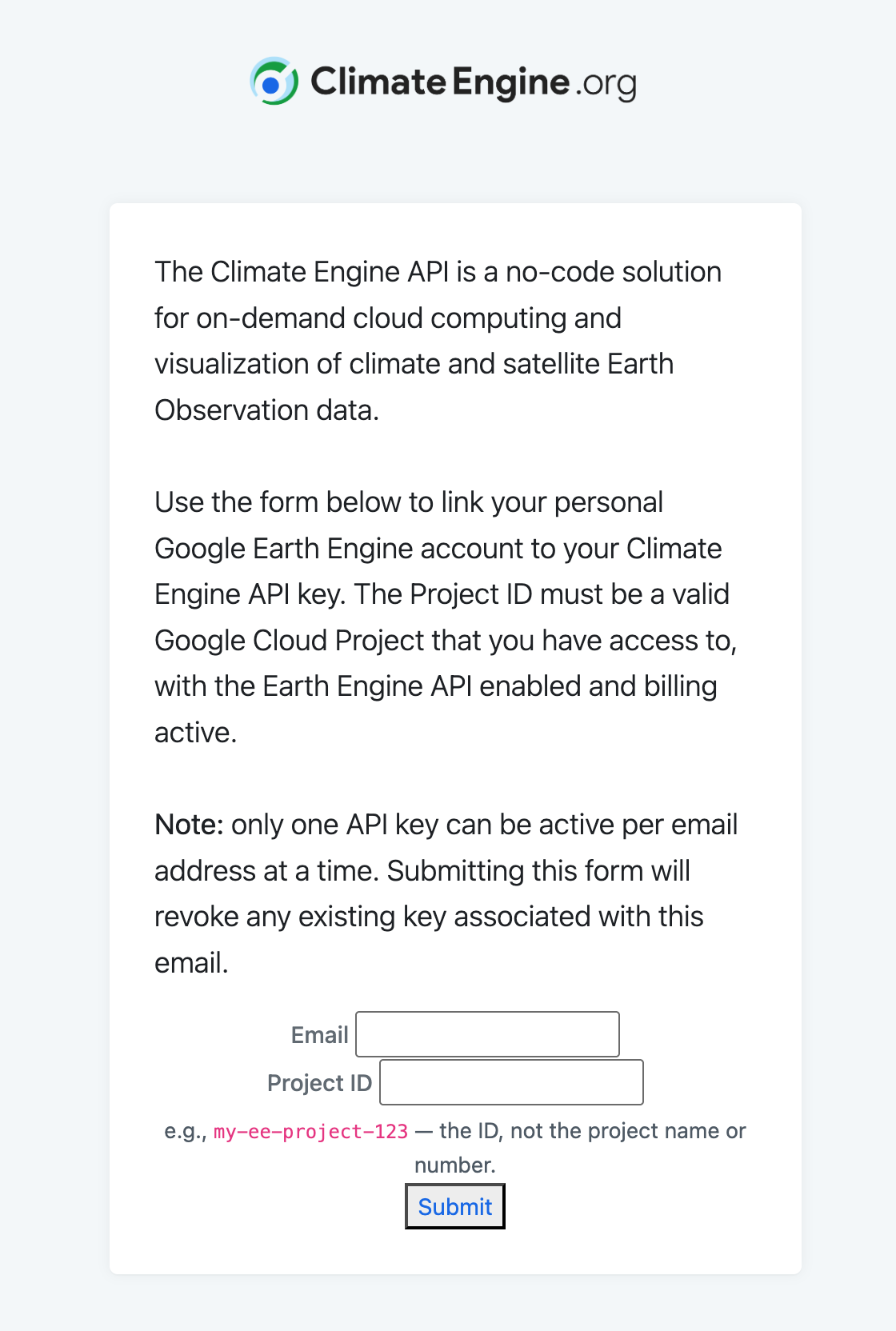
After submitting the form, you will be directed through a Google consent screen. This consent process authorizes Climate Engine to execute Earth Engine computations using your account and to write files to Google Cloud Storage.
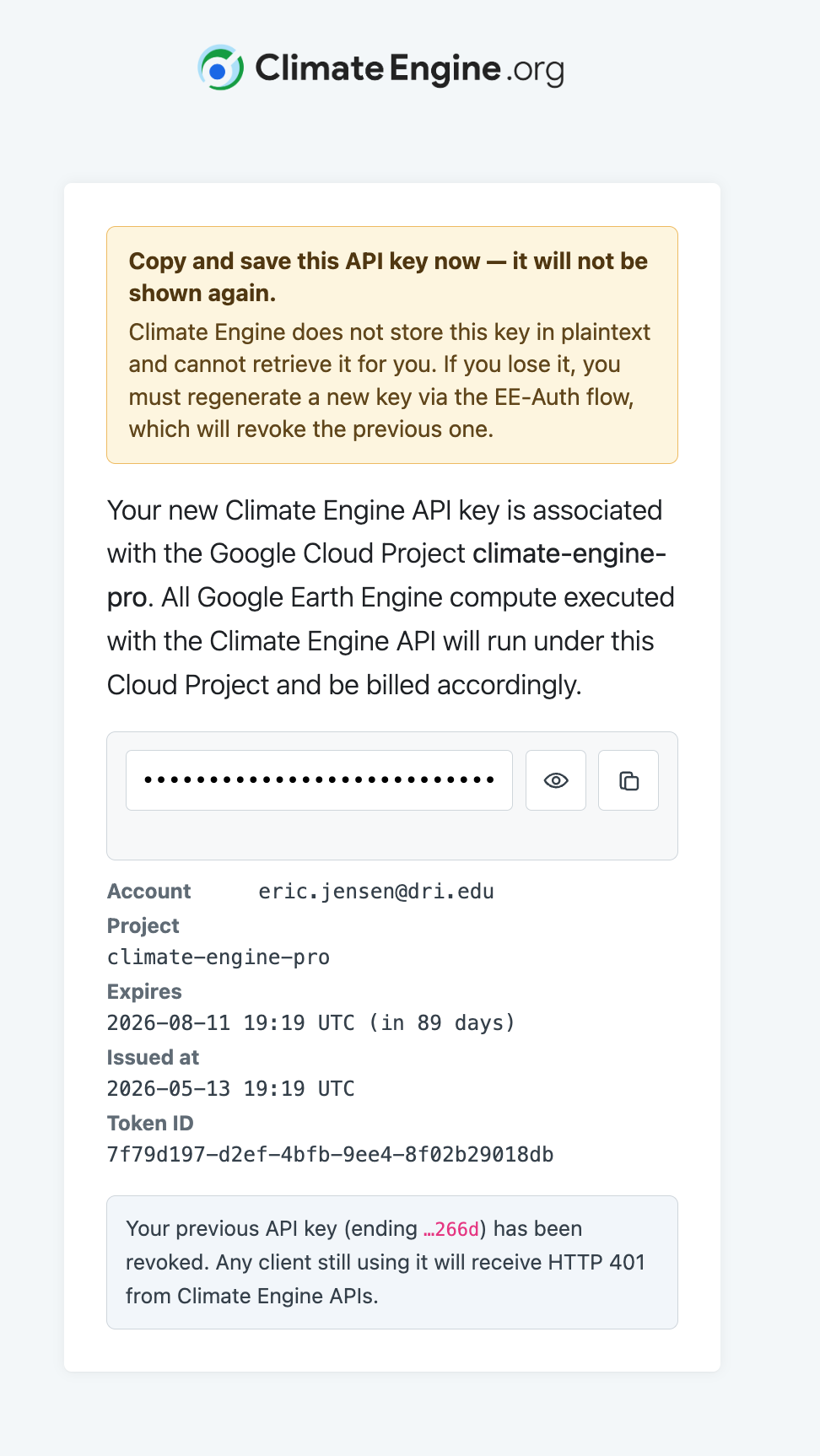
5. Save the new Climate Engine API key
After authorization is complete, you will receive a new Climate Engine API key. Use this key when making Climate Engine API requests that should run through the Earth Engine Connector workflow.
It is a good practice to store the API key together with the Google Cloud Project ID used during authorization. This makes it easier to track which project is associated with each workflow, especially if you use more than one Google Cloud Project.
6. Run a small test request
Before moving a production workflow to the connector, run a small test request. The goal is to confirm that the API key authenticates successfully, Earth Engine initializes with the expected project, and any exports are written to the expected Cloud Storage bucket.
A small test is especially helpful when you are working across multiple projects, multiple buckets, or organization-managed Google Cloud environments with more restrictive IAM settings.
Exporting to Google Cloud Storage
When the connector is enabled, Climate Engine can write supported outputs, including cloud-optimized GeoTIFFs and CSV files, to Google Cloud Storage. In the relevant API request, provide the bucket and output path for the export.
The authorized Google account must have permission to write to the target bucket. If the bucket is owned by a different project or organization, you may need to coordinate with a Google Cloud administrator to confirm that the correct IAM permissions are in place.
Check bucket permissions
If an export request authenticates successfully but does not write to the expected bucket, check Cloud Storage permissions before changing the Climate Engine request itself.
Working with multiple projects
You may authorize more than one Google Cloud Project over time. When more than one project has been authorized, the connector uses the most recently authorized project by default.
For example, if you first authorize project-a and later authorize project-b, the connector will initialize using project-b for the most recent connector-enabled workflow. If you need to return to project-a, complete the authorization workflow again with the project-a Project ID and use the API key issued through that authorization.
Troubleshooting
Most connector issues are related to project configuration, API authorization, or Cloud Storage permissions. If a request fails, first confirm that the API request is using the connector-enabled Climate Engine API key and that the Google Cloud Project ID was entered correctly during authorization.
Next, check the Google Cloud Project itself. The Earth Engine API must be enabled, the authorized Google account must have access to the project, and the project must be eligible for the intended Earth Engine use case. If the workflow exports files, also confirm that the authorized account can write to the destination Cloud Storage bucket.
It can be useful to isolate the problem with a small request. If a small request works but a larger export fails, the issue may be related to export size, task configuration, bucket permissions, or Google Cloud / Earth Engine limits that apply to your project.
FAQs
What does an invalid project error mean?
Note
This section will be updated once the new home/verify_cloudproject endpoint is available.
An invalid project error usually means that Climate Engine could not initialize Earth Engine with the Google Cloud Project ID provided during authorization. This can happen if the Project ID was typed incorrectly, if a project name or project number was entered instead of the Project ID, or if the project does not exist.
This error can also occur when the Google account used during authorization does not have access to the project, when the Earth Engine API has not been enabled, or when the project has not completed the required Earth Engine eligibility or registration steps.
To resolve the issue, open the Google Cloud Console and confirm the exact Project ID. Then verify that the Earth Engine API is enabled and that you are signed in with a Google account that has access to the project. After confirming these settings, return to the Climate Engine authorization form and submit the Project ID again.
Which project is initialized if I have authorized more than one project?
The connector initializes the most recently authorized Google Cloud Project by default.
If you authorize one project and later authorize a different project, the later project becomes the default project for the connector workflow. To switch back, complete the authorization workflow again using the Project ID for the project you want to use.
How can I check which project was used to initialize Earth Engine?
Note
This section will be updated once the new home/verify_cloudproject endpoint is available.
The best way to avoid ambiguity is to record the Google Cloud Project ID when you complete the connector authorization and store it with the associated Climate Engine API key.
You can also verify the initialized project by running a small test request and checking the response, export task information, Google Cloud logs, or output bucket destination. If the request writes to the expected bucket and uses the expected project resources, the connector is initialized as intended.
If the initialized project is not the one you expected, re-run the authorization workflow with the correct Project ID and update your workflow to use the newly issued API key.
Do I need a Google Cloud Storage bucket to use the connector?
You only need a Google Cloud Storage bucket if your workflow exports files to Cloud Storage. Workflows that do not create export files may not require a bucket.
If your workflow does export GeoTIFFs, cloud-optimized GeoTIFFs, CSVs, or other files, create or select a bucket before running the export. Make sure the Google account used during authorization has permission to write to that bucket.
Does the connector remove all limits?
The connector is designed to remove the standard Climate Engine API quota limits for connector-enabled workflows. However, your workflow may still be subject to limits that apply to your Google Cloud Project, your organization, Google Cloud billing, Earth Engine, or Cloud Storage.
Additionally, you will still be subject to rate limits for the Climate Engine API, which are applied to all Climate Engine API users to protect Climate Engine's services from DDoS and other repeated attacks.
Can I use the connector without a Google Cloud Project?
No. The connector requires a Google Cloud Project with the Earth Engine API enabled.
If you do not already have a project, create one in the Google Cloud Console, enable the Earth Engine API, complete any required Earth Engine eligibility steps, and then complete the Climate Engine authorization workflow.
Is the connector required for all Climate Engine users?
No. Most users can continue using the Climate Engine web application and standard Climate Engine API access without enabling the connector.
The connector is recommended for users who need larger exports, more frequent requests, operational workflows, or direct integration with their own Google Cloud Storage buckets.
Support
If you have questions about the Climate Engine–Earth Engine Connector or encounter issues during setup, contact the Climate Engine team: